
Quick answer
Compare native Windows settings, Start11, ExplorerPatcher, and Open-Shell against the specific interface task you need. They are not identical replacements. Check current Windows requirements, licensing, update behavior, and removal options before choosing a tool.
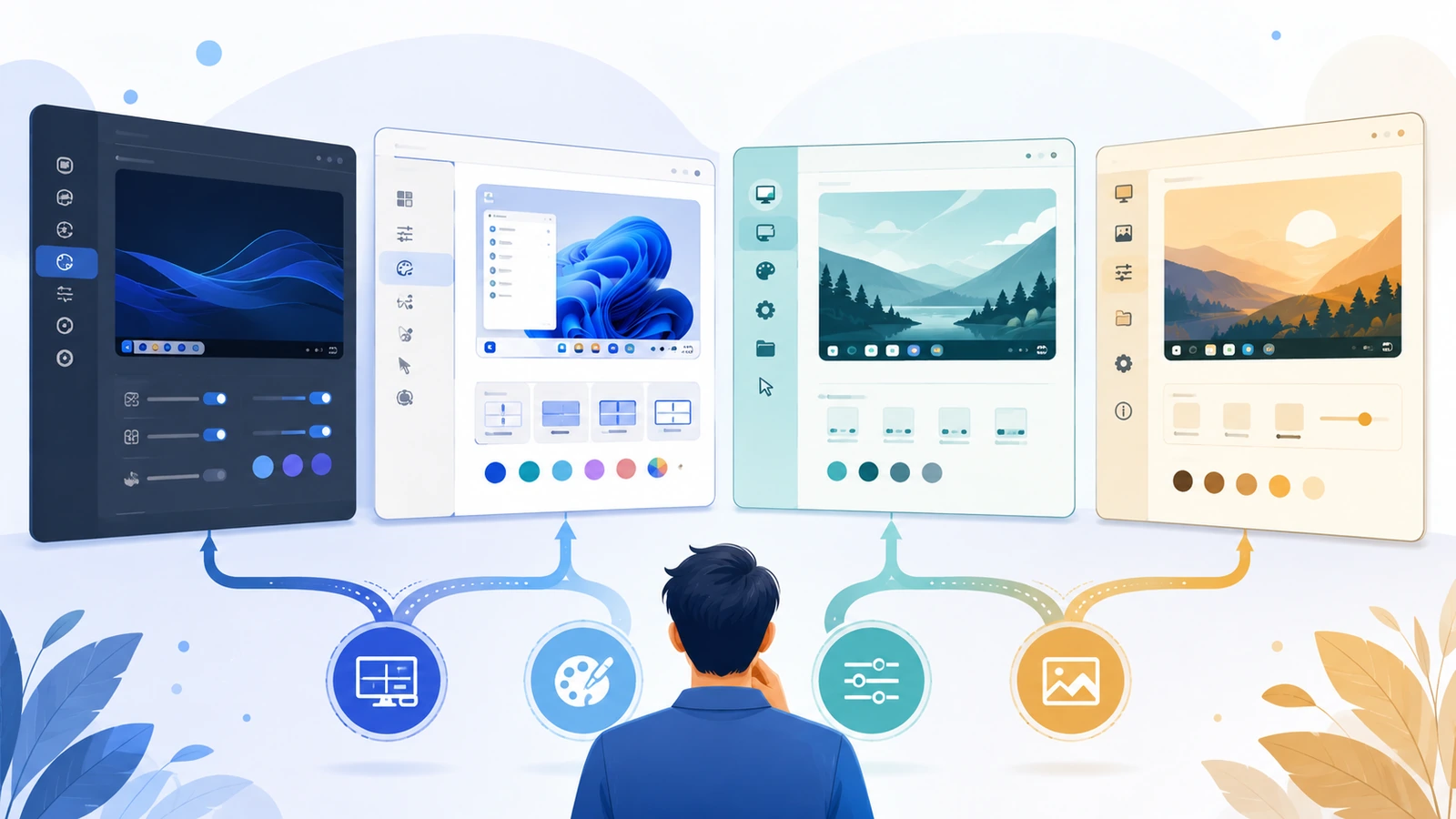
What matters for this task
This is a feature-scope decision guide, not a benchmark ranking. A single native setting may solve a narrow problem with less maintenance, while a broader customization package may be appropriate for a coordinated menu and taskbar workflow.
Steps to follow
- Define the required result: menu organization, taskbar placement, window labels, Explorer style, or another specific need.
- Check the current native Windows option first and record what remains unsolved.
- Review each candidate’s own project or product documentation for that feature and your Windows build.
- Test one candidate at a time on a recoverable setup, including its uninstall path, before comparing the next.
Verify the result
Use the same desktop tasks for every candidate. Separate published features from personally observed results and do not invent speed or reliability scores.
Limits and rollback
Remove one overlapping shell tool before installing another for a meaningful comparison. Keep screenshots of the native baseline.
Questions about this task
Which alternative is universally best?
There is no universal result established here. Match the tool to the required component, platform, and maintenance constraints.
Should I install all candidates at once?
No. Overlapping shell modifications prevent a clean comparison and can complicate recovery.
Primary sources
Publisher claims and Windows procedures are linked below. The comparison and diagnostic steps are editorial guidance, not a claim of hands-on Windows testing.
Windows 11 download · Review compatibility and the publisher’s license terms before installing.
Download for Windows 11 File source and installation notes