
Quick answer
Use a repeatable workload to evaluate StartAllBack performance. Compare the same Windows build, applications, and display configuration with a simple appearance setup. This guide provides a measurement method, not benchmark numbers or a guaranteed speed improvement.
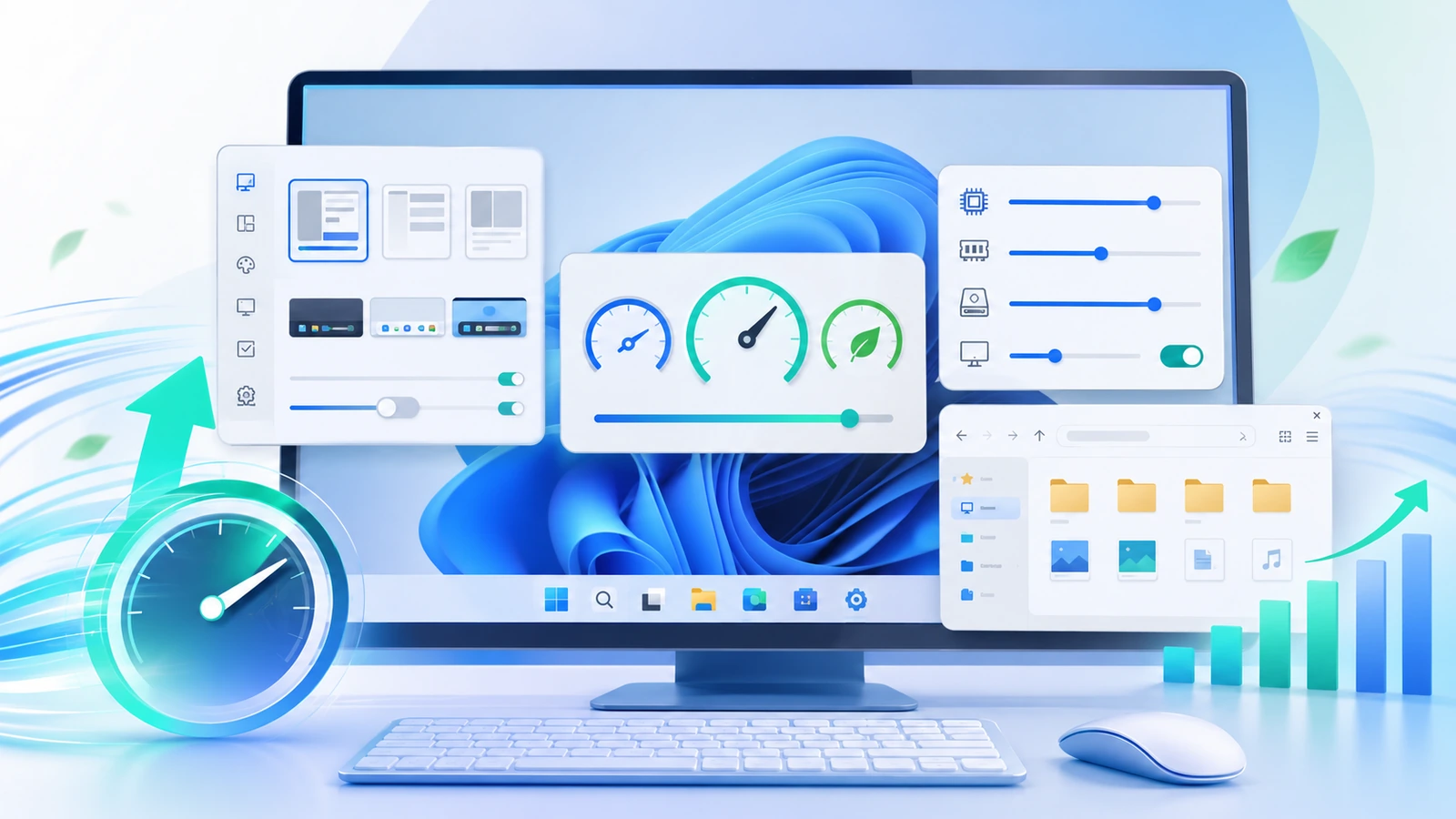
What matters for this task
A busy desktop can be affected by startup programs, indexing, updates, graphics drivers, and other shell extensions. Changing several of those at once prevents a meaningful attribution. Short subjective impressions should be treated as observations, not proof.
Steps to follow
- Choose a repeatable sequence: open Start, launch an app, switch windows, and open a folder.
- Let background updates settle and record the Windows and StartAllBack versions and other active shell tools.
- Compare a simple style with the current configuration while keeping the workload fixed. Use Task Manager as one observation source, not as the only measurement.
- Repeat several runs and note visible stalls, Explorer restarts, and resource readings without inventing precision.
Verify the result
A useful report separates UI responsiveness, resource use, and crashes. A single low CPU reading does not establish faster startup or lower battery use.
Limits and rollback
Revert effects that reliably worsen your own workload. If the native shell performs better for your needs, remove the additional customization rather than applying random service-disable scripts.
Questions about this task
Does this site publish measured performance gains?
No Windows benchmark was performed for these guides. Do not interpret them as measured comparative results.
Should I disable Windows services to make the taskbar faster?
Not without a specific diagnosis. Start with reversible appearance and conflict checks.
Primary sources
Publisher claims and Windows procedures are linked below. The comparison and diagnostic steps are editorial guidance, not a claim of hands-on Windows testing.
Windows 11 download · Review compatibility and the publisher’s license terms before installing.
Download for Windows 11 File source and installation notes